> For the complete documentation index, see [llms.txt](https://docs.upsellwp.com/llms.txt). Markdown versions of documentation pages are available by appending `.md` to page URLs; this page is available as [Markdown](https://docs.upsellwp.com/example-scenarios/free-sunglasses-on-usd500+-orders-10s.md).
# Free Sunglasses on $500+ Orders (10s)
Learn how to create Post-purchase campaign using UpsellWP by offering a free sun glass to customers who have their cart value over $500.
#### Introduction
In this scenario, if a customer's order total is $500 then the displays free sunglasses for 10 seconds on the offer page.
#### Creating an offer:
* Go to WordPress dashboard -> UpsellWP -> Create New Campaign -> choose “Post-purchase”.
* Click on the button “Add offer”.
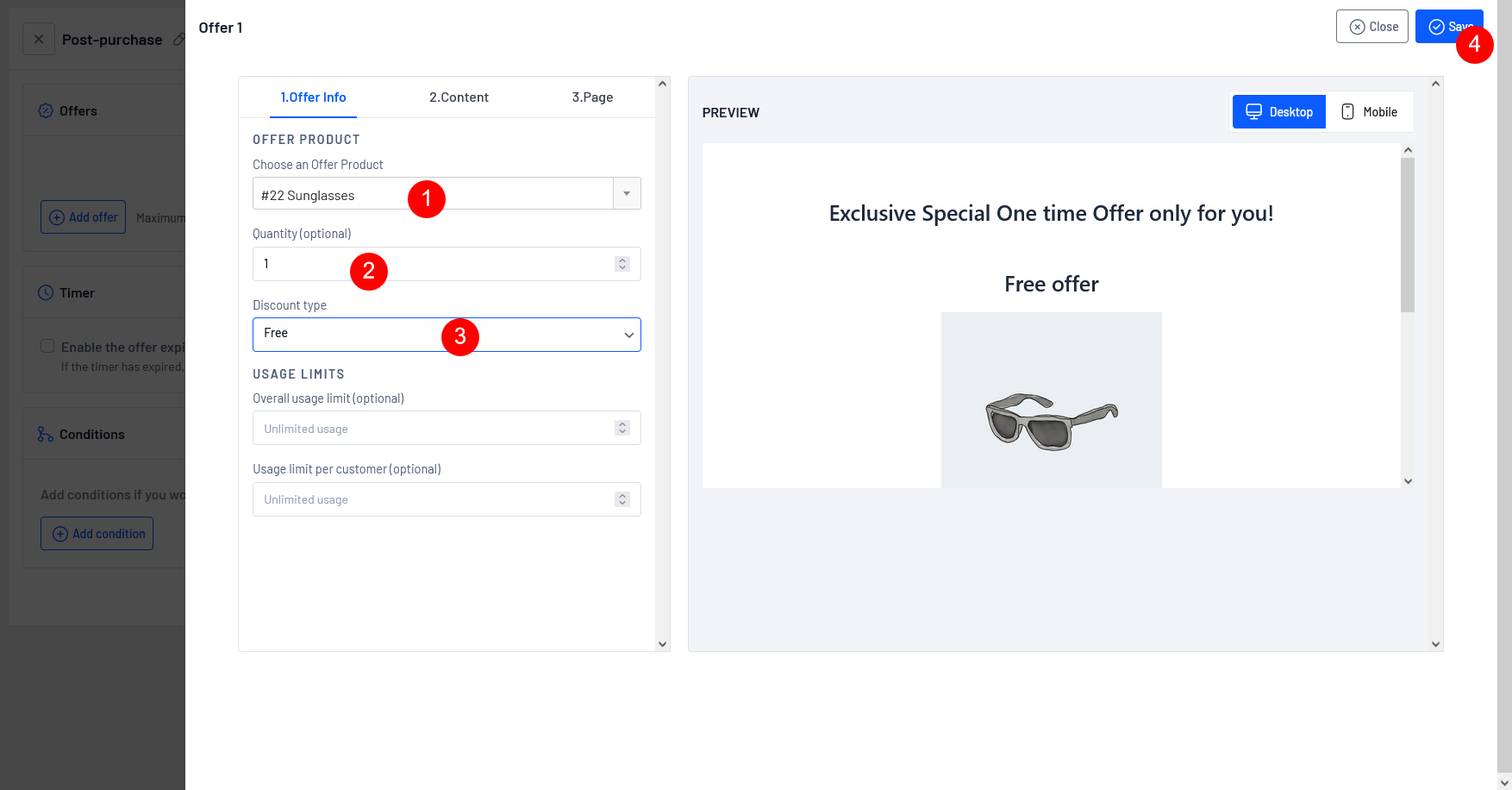
**Here is the screenshot of the offer configuration that follows,**
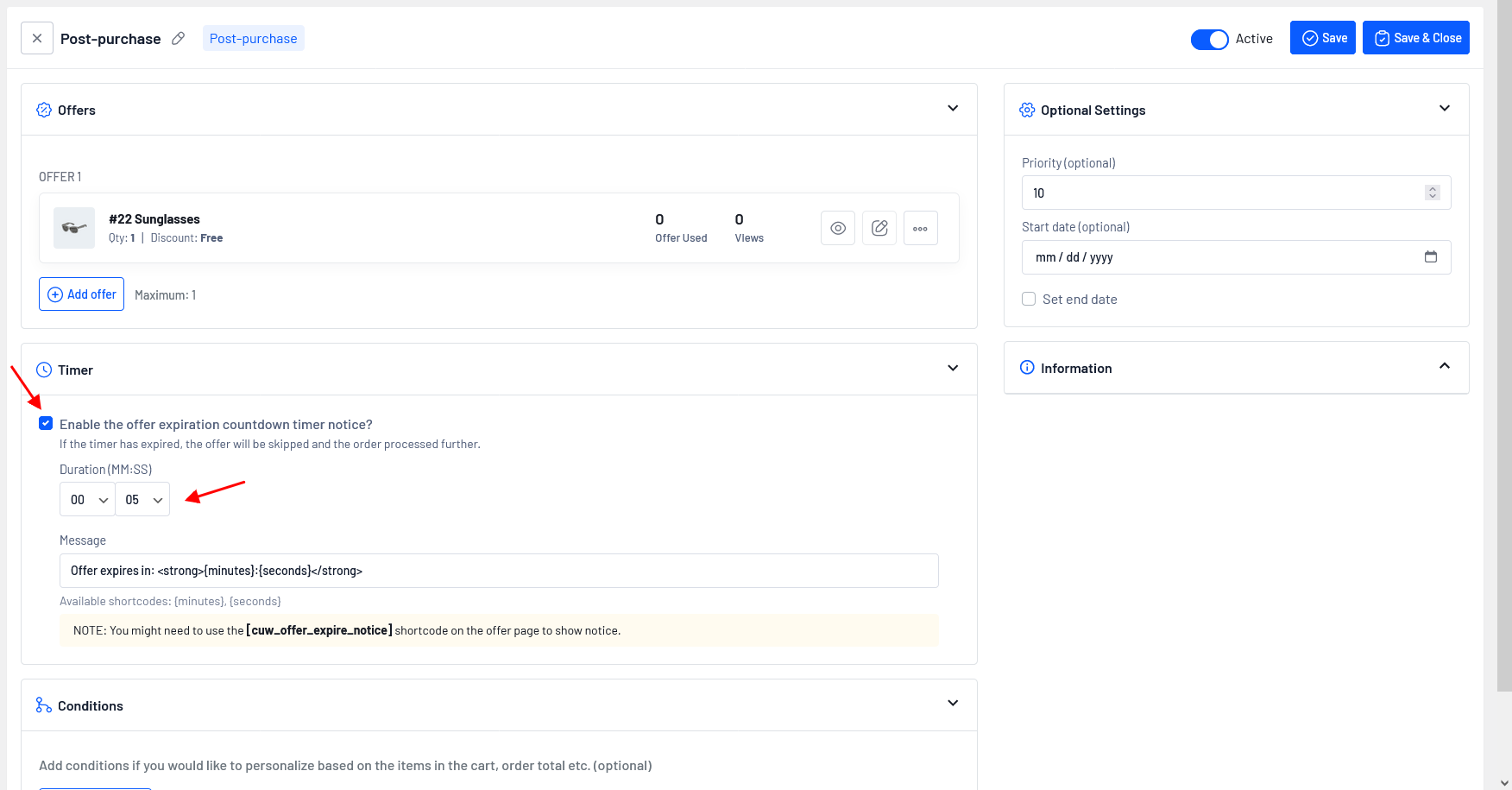
**Here is the screenshot of the 5 seconds Timer configuration that follows,**
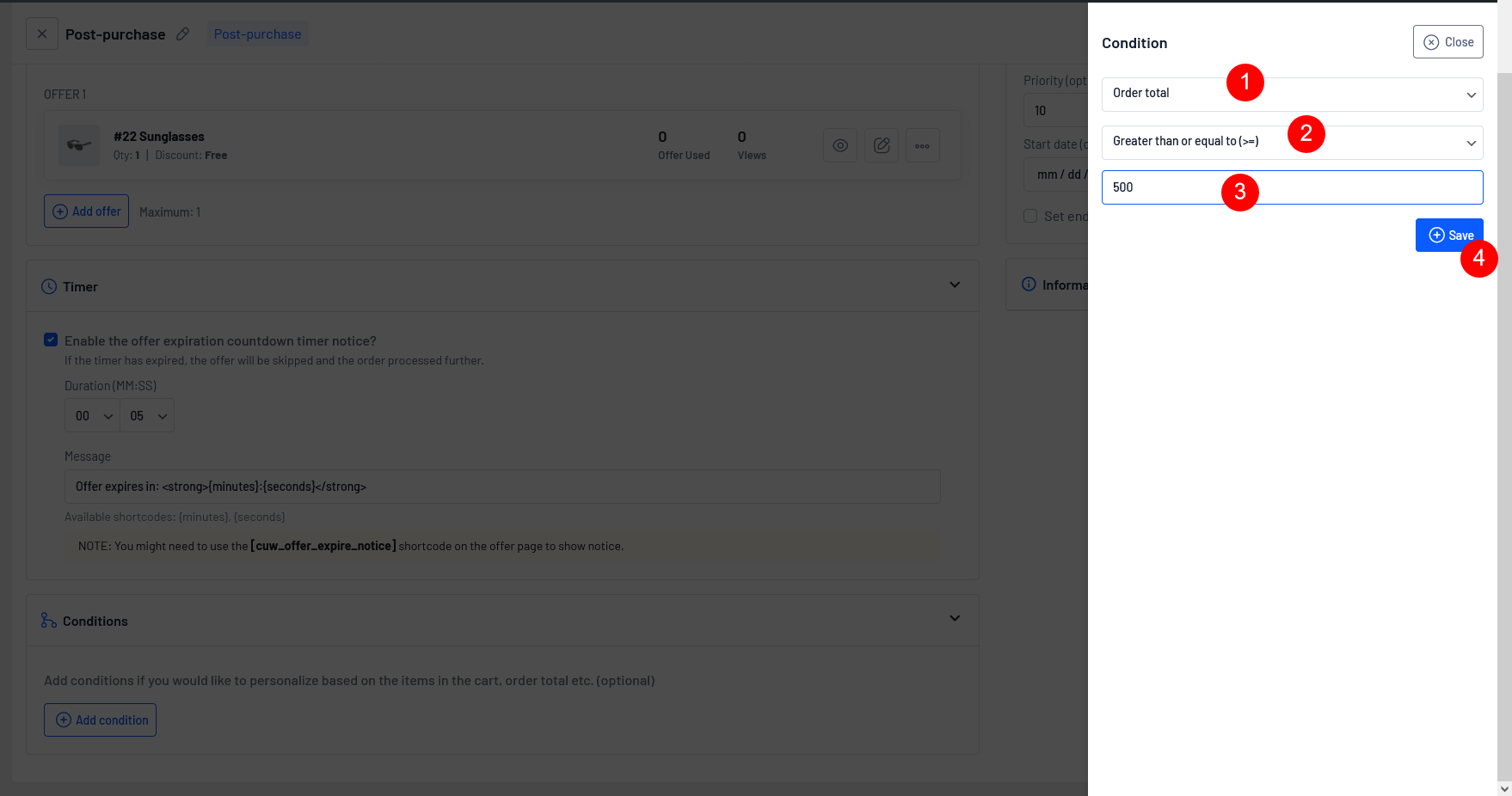
**Here is the screenshot of the condition configuration that follows,**
#### Details of configurations are:
**Step 1:** Choose the offer product (Sunglass) that you want to display on the offer page by typing a few characters of the product name and setting a quantity for the selected offer product or adjusting the quantity based on your requirement.
**Step 2:** Choose the “Discount Type” as Free. You also have the option to choose other discount types such as fixed discount, percentage discount and No discount.
**Step 3:** Once we have successfully created an offer, click on the button “Save”
**Step 4:** Turn on the Timer option select the checkbox "Enable the offer expiration countdown timer notice?" and set 5 seconds. You can also choose other expiration countdown times as per your needs.
**Step 5:** Choose the “Conditions” as the Order total and choose the order total that is Greater than or equal to (>=) $500. You also have the option to choose other conditions by clicking “Add condition”
**Step 6:** Once we have successfully created a campaign, click on the button “Save”
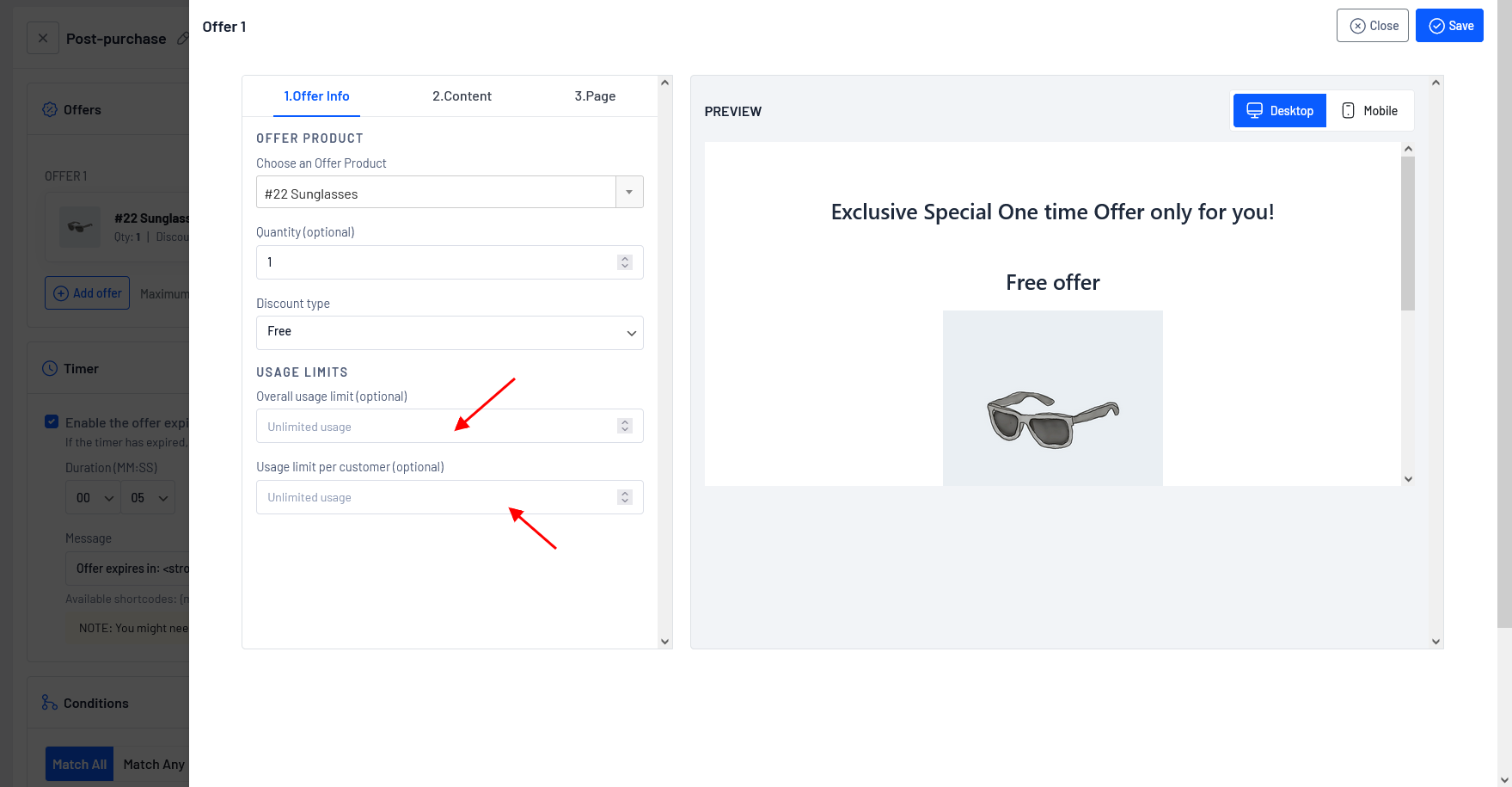
**Other details shown in the below screenshot are (optional):**
**Overall usage limit:** The "Overall usage limit" refers to the maximum number of times an offer can be used by all customers as a whole. Something like early-bird offers for the first 5 users or 10 users.
For example, if the limit is 100, the offer can only be applied to a total of 100 orders, regardless of the number of customers. Once the limit is reached, the offer will get disabled automatically.
**Usage limit per customer**: The “Usage limit per customer” refers to a restriction on the number of times a specific upsell offer can be claimed by an individual customer. It sets a maximum limit on the usage of the upsell for each customer.
For example: If the usage limit per customer is set to 3, it means that each customer can only claim the offer up to a maximum of 3 times. Once a customer has claimed the offer 3 times, they will no longer be able to avail the offer.
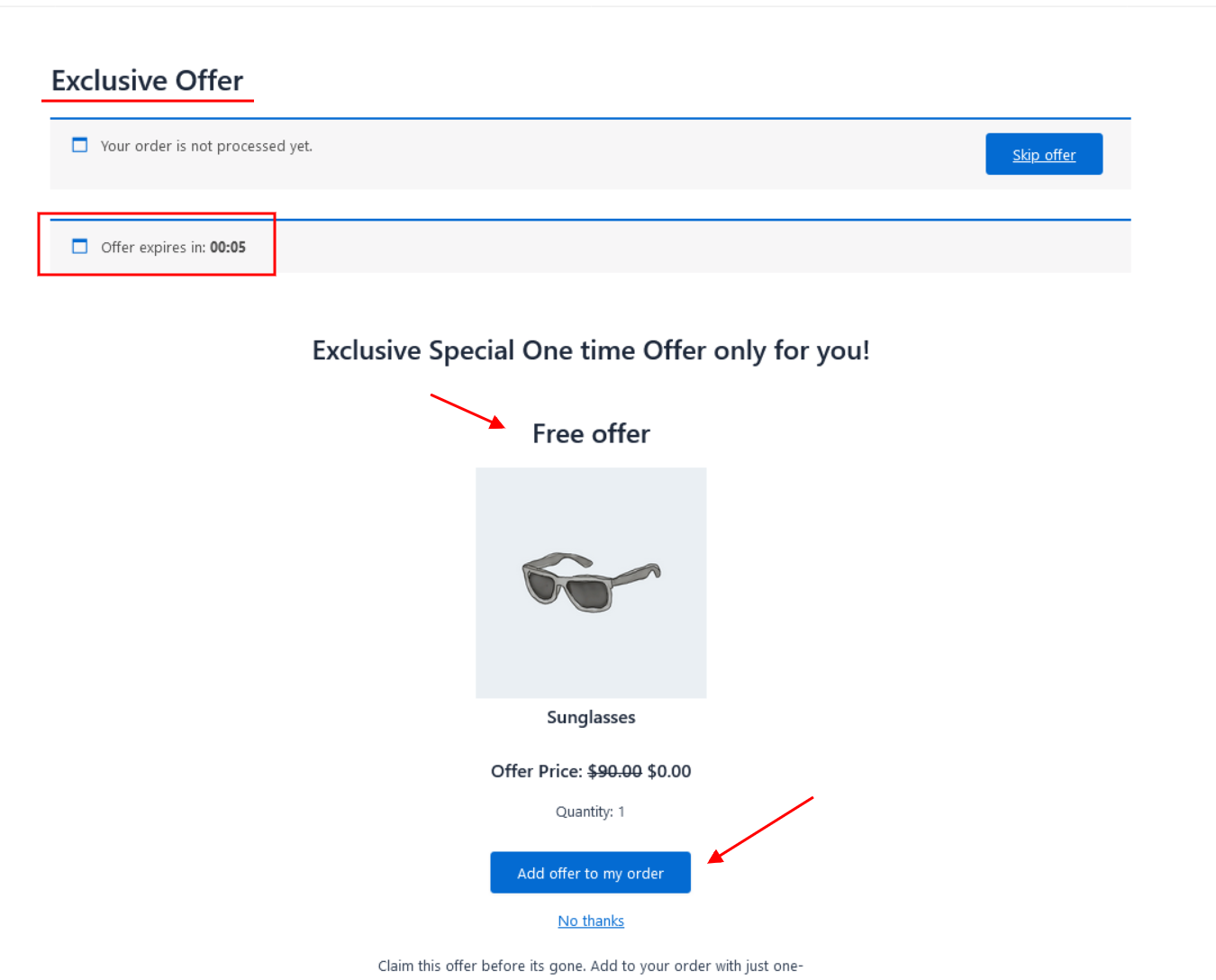
Now, we have successfully created an offer, Let see how it works on the offer page.
Now the offered free product has been successfully displayed on our offer page. Please ensure to click “Add offer to my order” before 5 seconds to avail the offered product, or click “skip offer” to skip the offer.
{% hint style="warning" %}
Above discussed scenarios require PRO
[Get UpsellWP PRO](https://upsellwp.com/)
{% endhint %}
#### Still unclear?
If you need any assistance, please create a[ support request](https://upsellwp.com/support/) in our ticket system. We are always happy to assist you :)